Creating your account and profile
For readers and authorsUpdated 2 min read
Sign up with an invite code, an e-mail address and a password; the code decides whether the account is a reader or an author account; then fill in the profile readers see (name, username, photo, bio) under Settings › Profile.
The short answer
Before you start
During the closed beta you need an invite code to open an account. It came from an author who invited you (the link fills the code in for you) or from the request form on the home page; The beta, what it is, who gets in, what is free explains both. One person, one account: the Terms do not allow a second.
Signing up
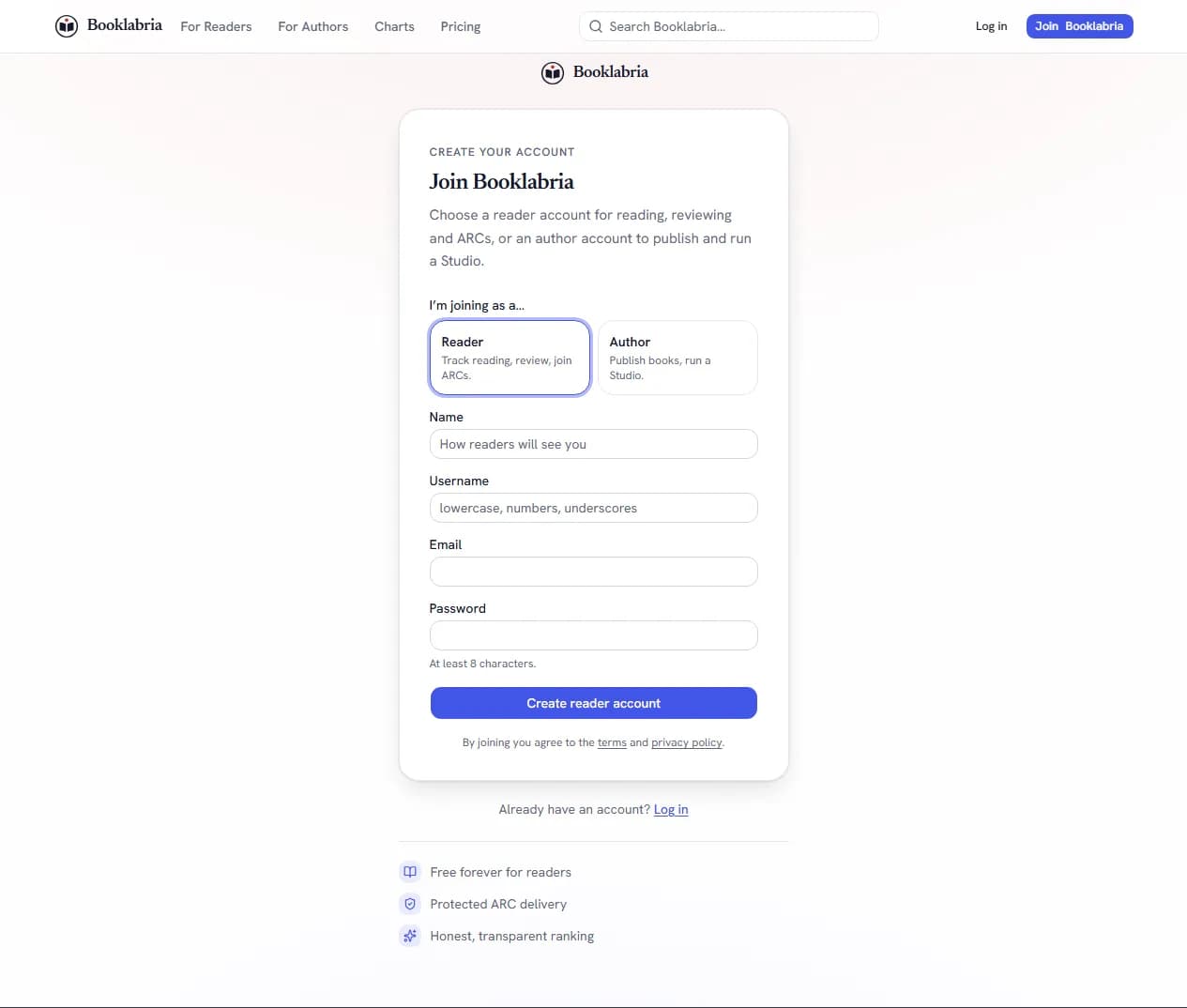
- Open /signup.
- Enter your invite code (the link you were sent fills it in). The code decides the account: an author invite makes an author account (publish books, run a Studio), a reader invite makes a reader account (track reading, review, join ARCs). A code works once, for one account. Reader and author accounts says how the two differ and how a reader becomes an author later.
- Enter your name (an author enters the public author or pen name), a username (3 to 30 characters: lowercase letters, numbers and underscores), your e-mail address and a password of at least 8 characters.
- Press Create account. By joining you agree to the terms and the privacy policy.
A reader lands in the five-step onboarding (Setting your reading preferences); an author lands in Studio.
Your profile
Everything readers see about you is under Settings › Profile:
- Avatar: pick one of the offered designs, or Upload a photo of your own. An uploaded photo is resized on our servers and every embedded tag (location, camera, time) is removed; uploads are limited to ten a day.
- Cover: the band at the top of your profile: a design drawn from your username, one from the gallery, or Upload a cover.
- Display name (up to 50 characters) and Username. Both can be changed any time; your profile's address follows your username.
- Bio, and your Language.
- Show achievements on my profile: on by default; see How achievements work.
Press Save; the page says when it last saved.
What we ask for, and what we do not
An e-mail address and a password are all an account needs. We collect no business or payment information at signup or anywhere else during the beta; the Privacy policy lists exactly what is stored.
Where this lives
Related
- The beta, what it is, who gets in, what is free: Booklabria is a closed beta by invitation. Readers never pay; authors have four plans (Author free, Creator $9, Pro $19, Publisher $59 a month, less on a year) but nothing is charged during the beta, and beta authors keep the founding price of Creator and Pro for twelve months from the day their trial starts, and have thirty days of unchanged access when billing opens; ARC files are delivered through protected, expiring links; apps for iOS and Android are on the way; nobody here can give a date.
- Reader and author accounts: An account is either a reader account or an author account. You choose at sign-up; a reader can become an author later from For authors, which keeps the library and reviews and cannot be undone.
- Setting your reading preferences: Your genres, tropes, language and the content you avoid shape recommendations, your feed and your early copy matches. Set them in the onboarding wizard (every step skippable) and change them any time under Settings › Profile.
- Getting started as a reader: The first hour with a reader account: the five-step onboarding, where Home, Discover, Circles, Early copies and Library are, the search in the middle of the bar, what to do first, and where your settings and Help live.
- Who sees what: profile visibility: Settings › Privacy sets your whole profile to public, followers only or private, and your library, reading progress, activity and follower list each on their own. Your follow-through is a fifth setting: by default only the authors you request a copy from see it. Author pages are public by nature; what an author keeps private is the library and activity.
Was this helpful?
Still stuck?
Still stuck? Ask Booklabria AI
It reads this article and the ones around it, and cites its source.
Write to a person
Support reads every note, with this article attached so the team knows what you already read.
Contact support